 Junebot
Getting your Canvas access token
Junebot uses a personal access token from your Canvas account to read your kids' assignments and due dates. It's read-only, takes about a minute to create, and you can revoke it from Canvas at any time.
1. Sign in to Canvas on the web
Open your district's Canvas site in a web browser (not the Canvas app) and sign in with your parent account. Districts label it differently — it may be called Canvas, or renamed to something like myMCPS Classroom — and many route parents in through a district portal first, so if you're not sure of the address, start from your school district's website.
Montgomery County (MCPS) parents
MCPS doesn't give parents a separate Canvas password — you get into Canvas through ParentVUE:
- Sign in to ParentVUE with your usual ParentVUE username and password. Either door works: classroom.mcpsmd.org (click Login under Parent), or go straight to md-mcps-psv.edupoint.com.
- Inside ParentVUE, open the myMCPS Classroom link — that's what MCPS calls Canvas. It opens in a new tab or popup; if nothing happens, your browser blocked the popup, so allow popups for the site and click again.
- Once you're in myMCPS Classroom, go straight to mcpsmd.instructure.com/profile/settings and continue with step 2 below.
2. Open your account settings
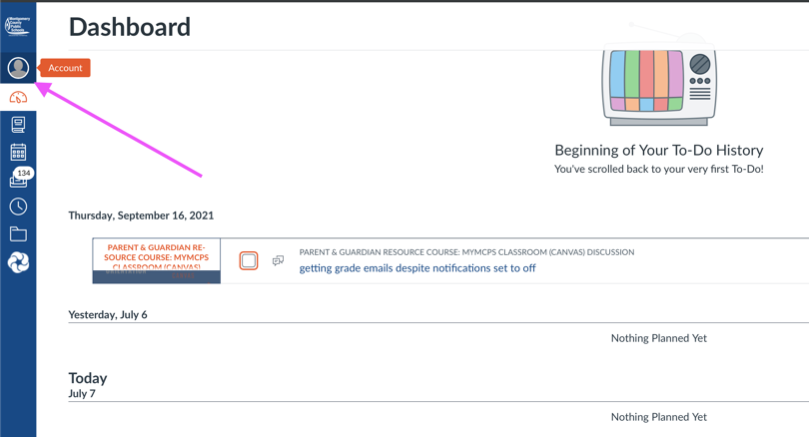
- 1In Canvas, click Account (your avatar at the top of the left sidebar).
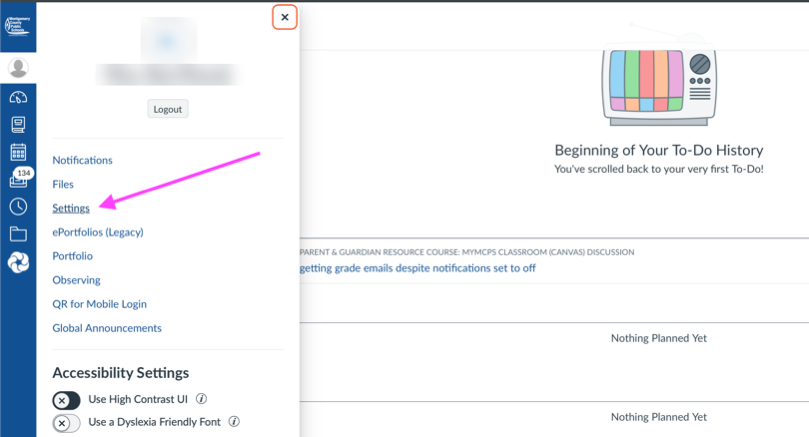
- 2In the panel that slides out, click Settings.
3. Generate the token
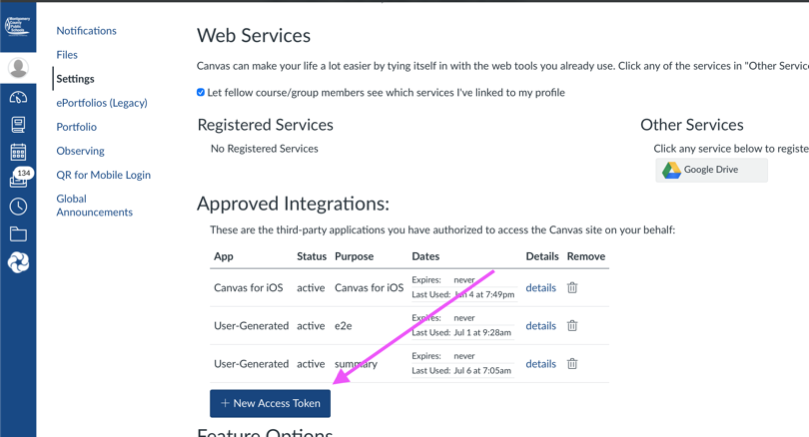
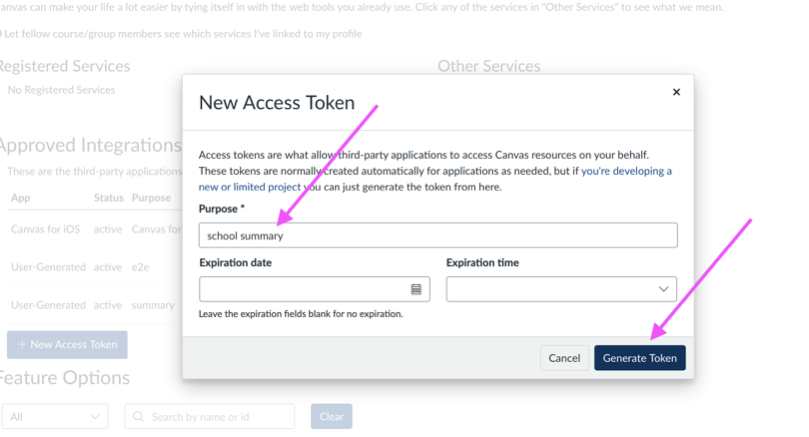
- 1Scroll down to Approved Integrations and click + New Access Token.
- 2For Purpose, type any label you'll recognize — Junebot works. Then set the expiry to the longest option Canvas offers you — MCPS currently allows up to 90 days. Picking the maximum means the fewest interruptions to your daily summaries. Click Generate Token.
- Districts used to allow tokens that never expired, and some may still. If yours lets you leave the expiry blank, do that — it means you never have to repeat this. Otherwise pick the maximum, and we'll email you a reminder before it lapses.
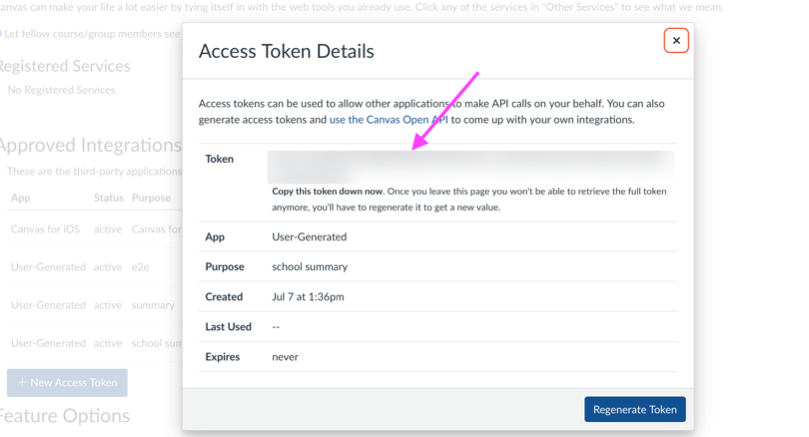
- 3Copy the token right away — Canvas only shows it once.
Troubleshooting
- “Connection failed” when pasting the token — make sure you copied the whole token with no spaces, and that it came from your parent account (not your child's). If in doubt, generate a fresh one.
- Lost the token? You can't view it again — delete it under Approved Integrations and generate a new one.
- Not sure when your token expires? Entering the date in Junebot's optional expiry field lets us remind you exactly. If you skip it, we'll still remind you — Canvas won't tell us the real date, so we assume 90 days from when you connected.
- Summaries stopped arriving? An expired token is the usual cause. Your Junebot dashboard shows Needs reconnect when that happens — generate a fresh token and paste it in.
- Want to disconnect later? Delete the token in Canvas (Approved Integrations) or hit Disconnect on your Junebot dashboard — either fully cuts off access.
Still stuck? Email support@junebot.com and we'll walk you through it.